DC - Access Rules
Access Rules
Privileges
| Master |
|
| Privacy overwrite |
|
| Meeting mode allowed |
|

Facilities
NOTE: A rule specifies only the time period during which access is permitted and the permissions granted. The rule itself does not specify which users it applies to or which access points are involved.
-
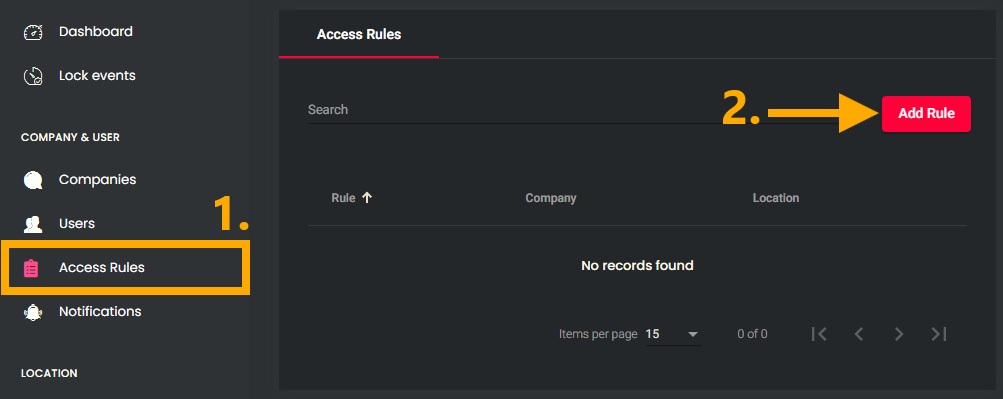
1. Add a rule
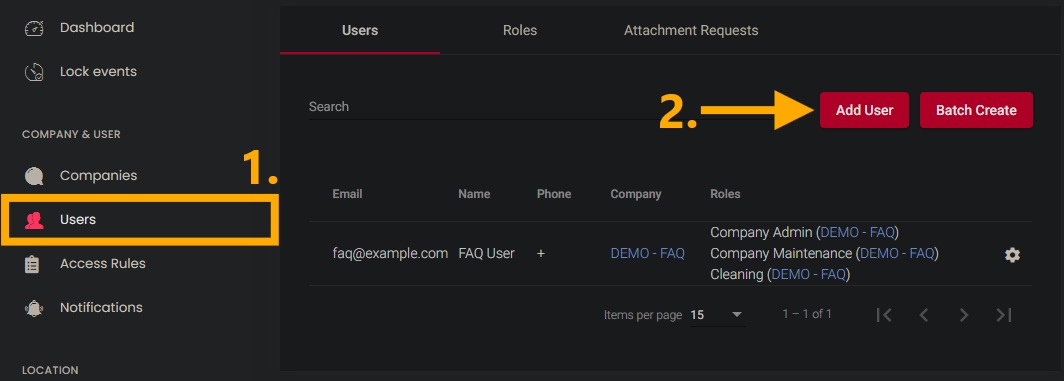
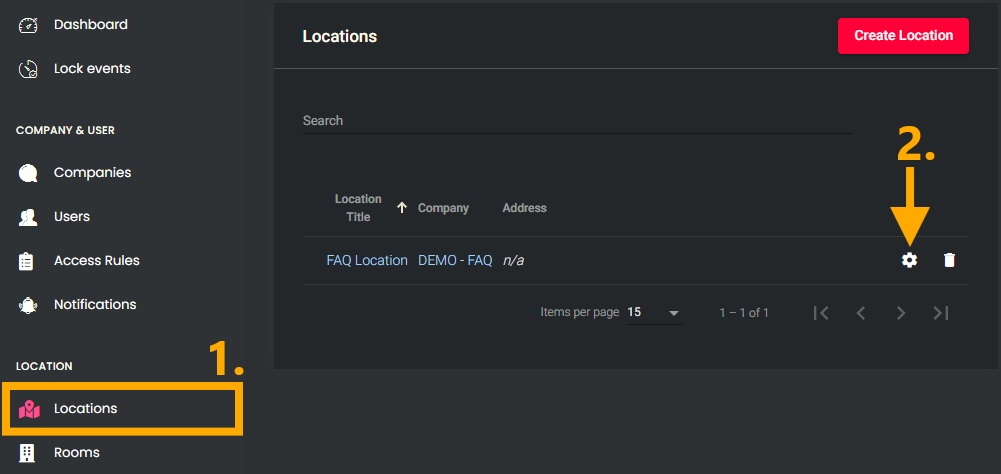
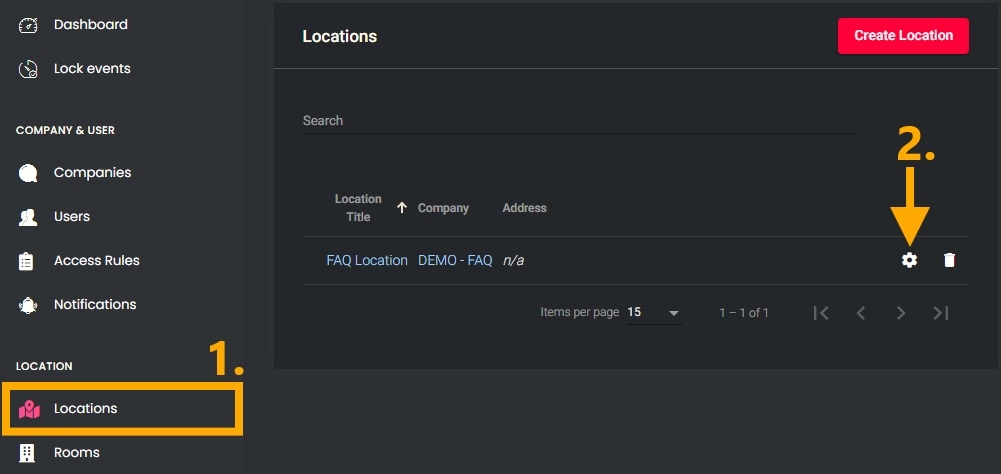
- In the left-hand menu, under the “COMPANY & USER” section, open the “Access Rules” menu item.
- Click the “Add Rule” button to open the settings for creating a new rule.
-
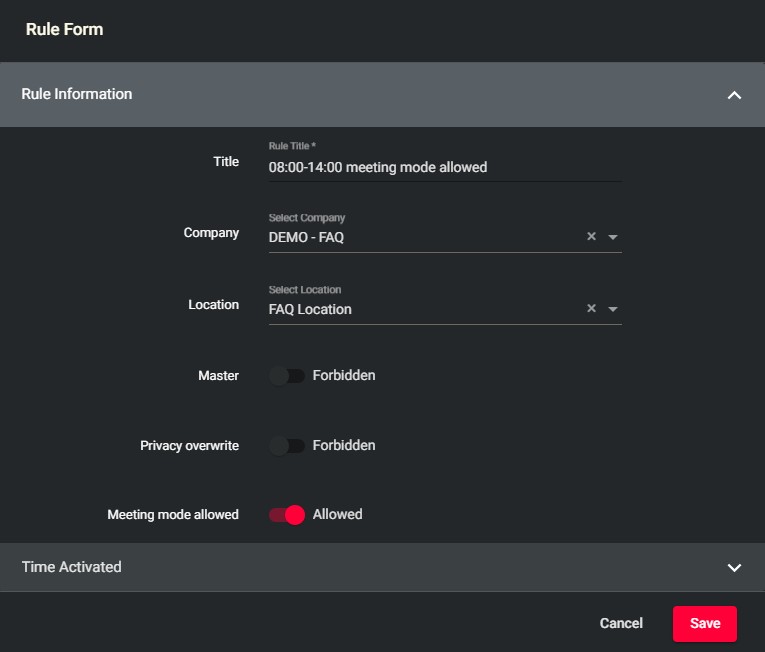
2. Set up privileges
- Give the role a meaningful name that reflects the time period and the assigned permissions.
- Enable the desired privileges.
- If “Master” has been selected, save the rule by clicking the “Save” button.
NOTE: If the “Master” privilege is selected, there is no need to define a time period, as the Master privilege is permanently valid.
-
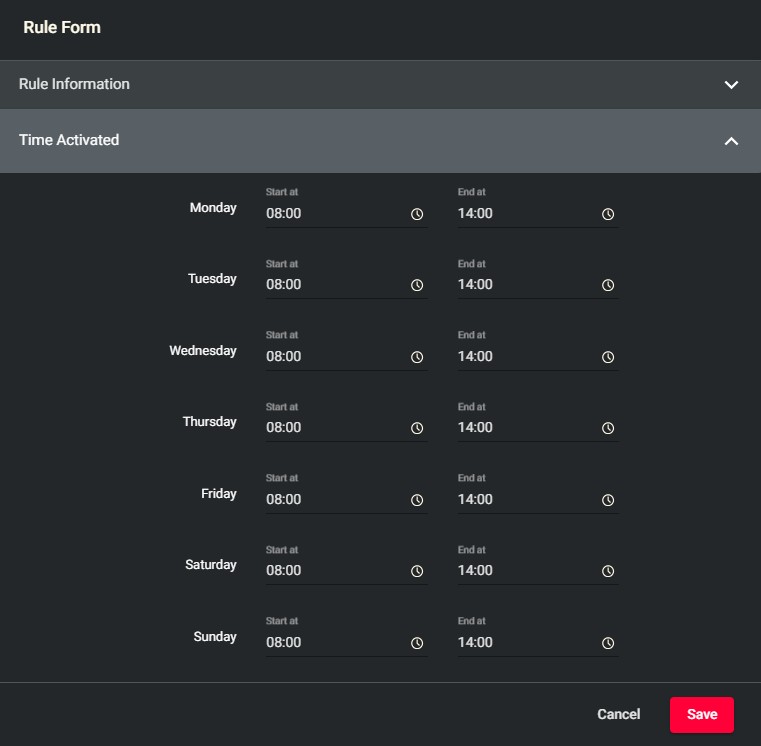
3. Select a time period
- Use the clock icon to set the start and end times for each day of the week.
- Once all times have been entered, click the “Save” button to save the rule.
IMPORTANT!The rule always applies to the full minute specified. This means that if 11:59 PM is selected, the rule remains in effect until the clock strikes 12:00 AM.