Instructions

1. Add user
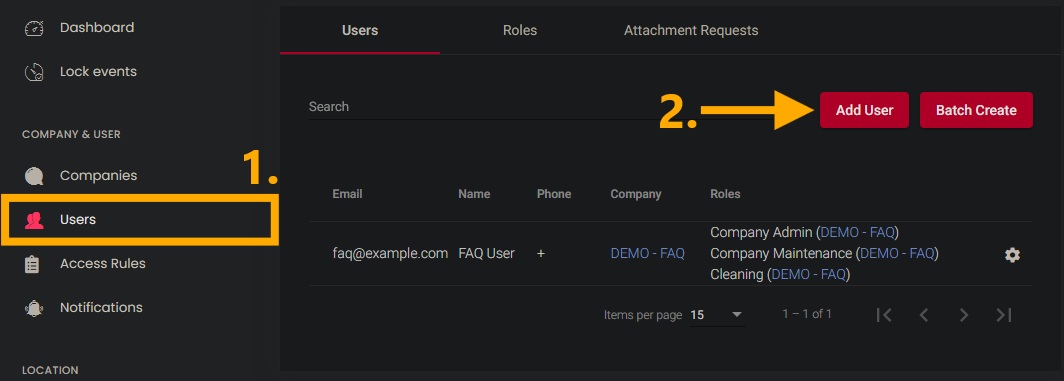
- In the left-hand menu, under the “COMPANY & USER” section, select “Users.”
- Click the “Add User” button to open the window for creating a user.

2. Enter email address
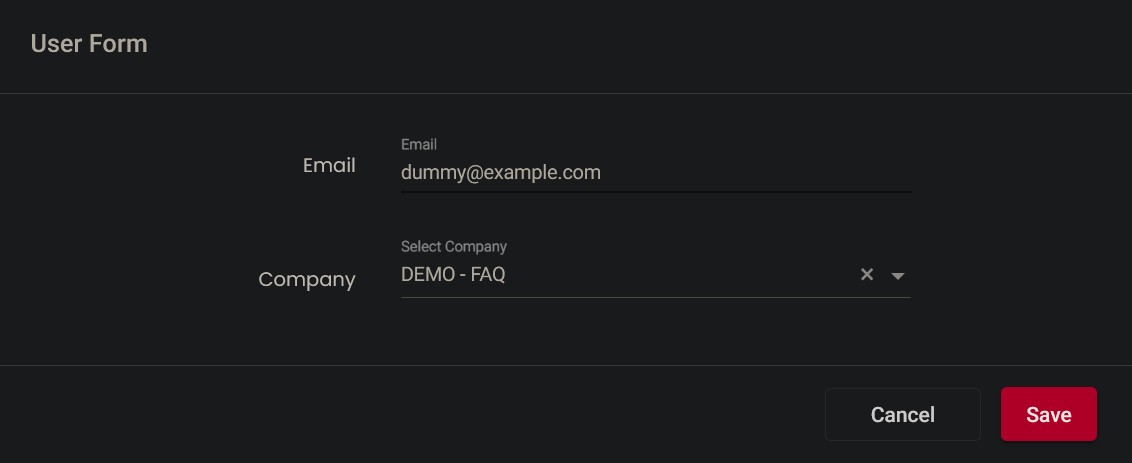
- Enter a valid email address.
- Click the “Save” button to proceed to the next step.

3. Enter password
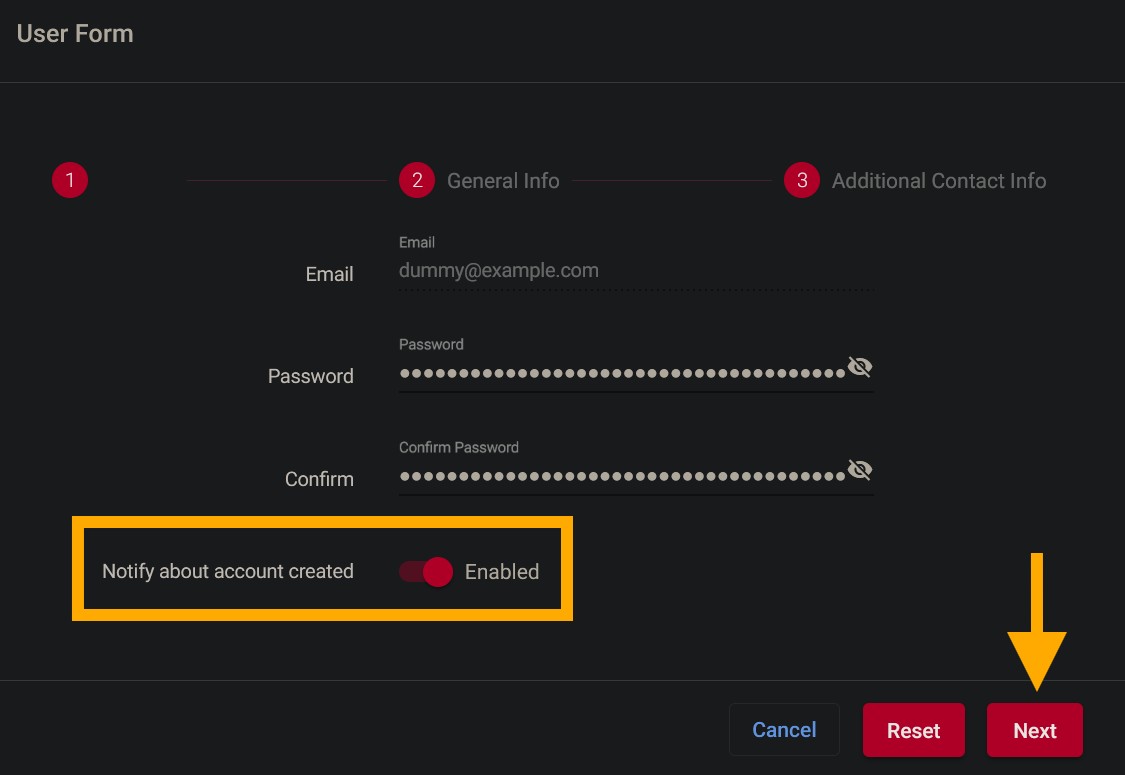
- Set a password for the user.
- Enable “Notify about account created” so that the user is notified via email when their account is created.
- Click the “Next” button to proceed to the next step.

4. Enter name
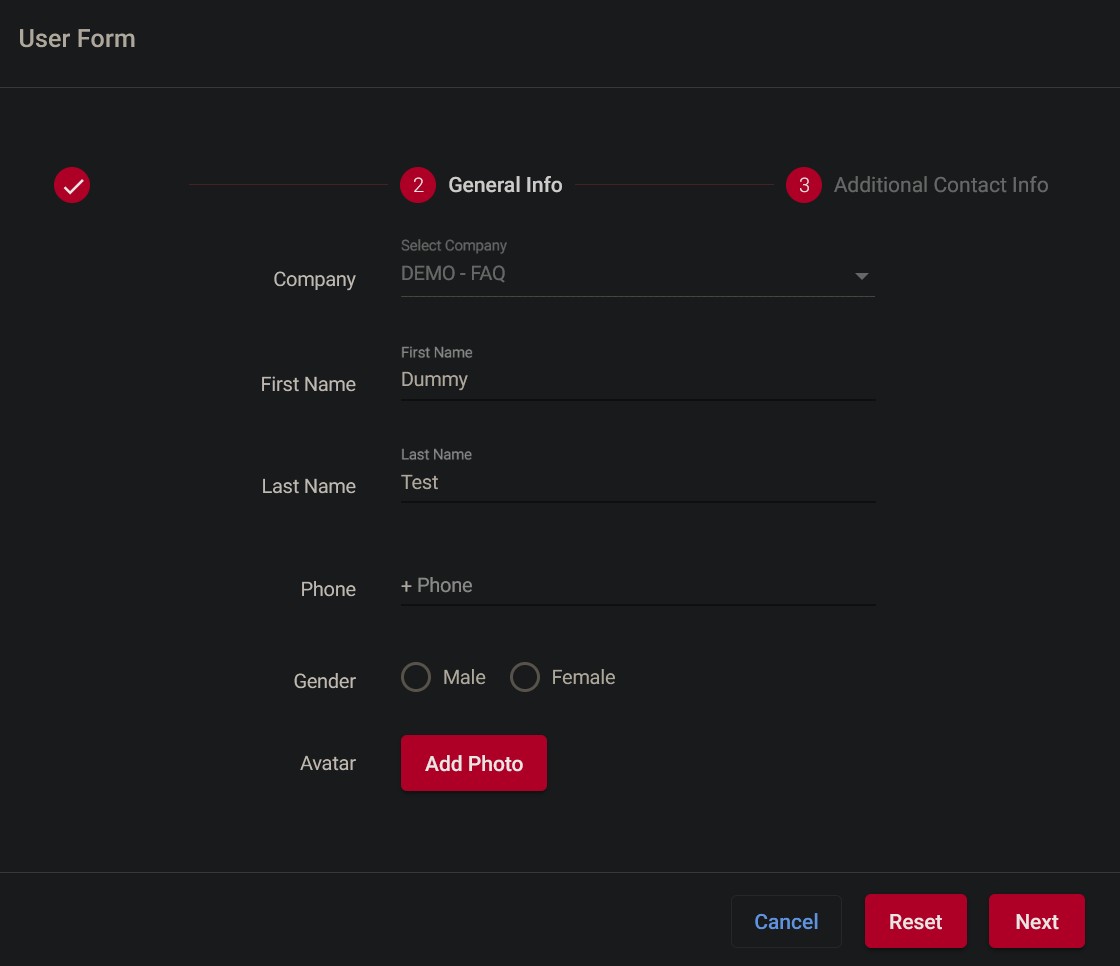
- Enter at least the user's first and last names in the “First Name” and “Last Name” fields.
- Click the “Next” button to proceed to the next step.

5. Select a country
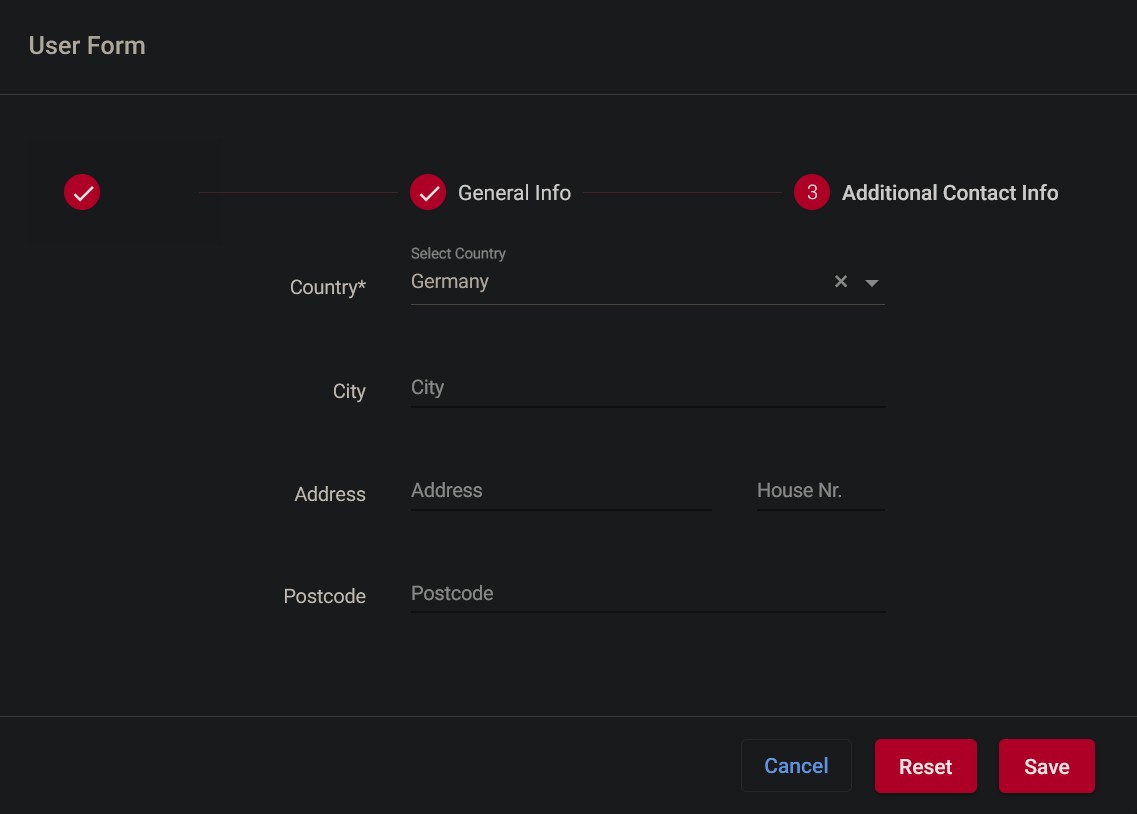
- At least specify the country.
- Click the “Save” button to save the user.

7. Optional - Key encoding
- If desired, generate a key for the newly created user.
IMPORTANT! To ensure the user has the desired access rights, appropriate roles must first be defined.